Microsoft Blames RGB Peripheral Software for Windows 11 Blue Screens and Crashes
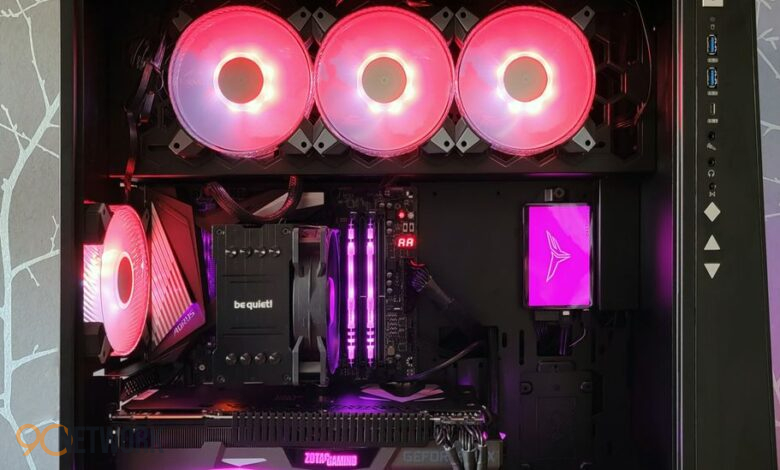
PC gamers experiencing sudden system freezes or blue screens might have their custom lighting controllers to blame. Microsoft has highlighted instances of RGB software crashing Windows 11 systems through unexpected driver conflicts. These background applications often run low-level services that conflict directly with system security and anti-cheat software.
For many desktop builders, lighting customization software runs quietly in the background from system boot. However, the low-level kernel access these utilities require can trigger system safeguards, leaving users with unprompted reboots during gaming sessions.
How RGB Software Crashing Windows 11 Occurs
Custom lighting utilities rely on specialized drivers to control light-emitting diodes on motherboards, graphics cards, memory modules, and external peripherals. Because these utilities must communicate directly with hardware controllers, their drivers frequently request deep system permissions within the Windows operating system.
Problems arise when these lighting drivers interact with modern anti-cheat solutions. Anti-cheat tools operate closely alongside the Windows kernel to monitor memory integrity and block unauthorized software manipulation. When an RGB driver attempts to access system memory in a manner flagged by anti-cheat tools, the operating system can lock up or trigger a blue screen.
This driver conflict manifests in several distinct ways across affected systems:
- System BSODs: Windows halts completely to prevent potential system corruption, generating a blue screen error.
- Game Freezes: Active titles lock up immediately when anti-cheat components detect restricted memory calls.
- Peripheral Unresponsiveness: Lighting controllers, mice, or keyboards stop responding until a system reboot.
Workarounds and Steps for Affected Users
Because these stability issues stem from driver interaction rather than simple application bugs, updating basic software settings may not resolve the crashes. Microsoft and hardware manufacturers recommend targeted temporary measures until official software patches arrive.
If you encounter frequent crashes during gaming, consider taking the following diagnostic steps:
- Disable Problematic Drivers: Access Device Manager or application settings to stop the background driver from loading at boot.
- Turn Off Startup Applications: Prevent peripheral management software from automatically launching alongside Windows 11.
- Use Native Windows Lighting: Where supported, rely on native Windows 11 lighting features rather than third-party utility applications.
- Check for Official Updates: Monitor peripheral manufacturers for updated software releases that address anti-cheat compatibility.
Disabling peripheral lighting drivers remains the most effective workaround until hardware vendors issue updated, fully compatible driver releases. Users prioritizing gaming performance and system stability should keep third-party RGB utilities disabled during active gameplay sessions.
Continue with more Windows 11 system stability updates from our technology desk.